


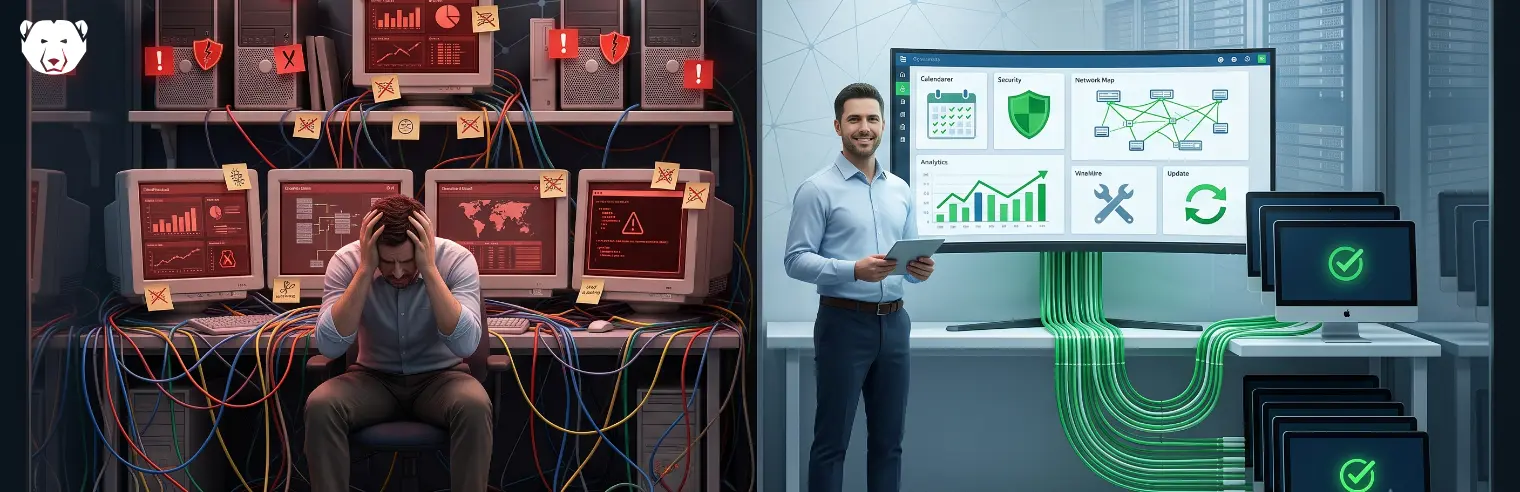
Managing shared computer fleets can require IT teams to address different aspects of the environment through separate tools. This can create a fragmented management structure that becomes increasingly difficult to maintain at scale.
Consolidating these functions into a single platform can simplify endpoint management. Below, we look at why organizations end up with multiple tools and what consolidating them involves.
Why Shared Computer Fleets Require Multiple Tools
Shared computer fleets present distinct management challenges, as no single user is responsible for maintaining a device between sessions. Over time, devices can shift from their intended configuration, requiring IT teams to address different aspects of endpoint management. Each requirement may be addressed through a separate product or tool.
A typical stack may include:
- Imaging: Deploy, restore and reconfigure endpoints.
- Patch management: Manage updates across the endpoint fleet.
- Endpoint security: Protect endpoints against security threats and unauthorized activity.
- Lockdown: Restrict unauthorized changes to endpoint configurations.
- Monitoring: Provide visibility into endpoint status and activity.
Using separate tools for these functions can create a fragmented management environment. Managing multiple products can increase administrative overhead and make it more difficult to maintain a consistent approach across the fleet.
Consolidating Fleet Management Into One Platform
Consolidating endpoint management brings multiple functions into a single platform, reducing the need to manage separate tools for different aspects of the environment. The platform should provide the capabilities required to manage the fleet through a unified management framework.
For shared computer fleets, these capabilities generally fall into three areas.
-
Restoring and Protecting Endpoints
Reboot-to-restore protection treats session changes as temporary. An administrator defines a baseline for each device, and changes made during a session are discarded when the device restarts. This allows IT teams to:
- Restore a consistent state: Return devices to their approved baseline after each session.
- Reduce manual remediation: Remove unwanted changes without identifying or reversing them individually.
- Maintain shared devices: Provide a consistent starting point for each new user session.
Additional controls can protect the device during the session by restricting applications and system changes.
-
Patching and Updating Endpoints
Patching a shared fleet involves two primary functions:
- Identifying missing updates: Scan endpoints for available Windows and third-party application updates and provide centralized visibility into patch status.
- Deploying updates: Approve updates and schedule their deployment to selected device groups during maintenance windows.
A consolidated platform brings both functions into a single management workflow, reducing the need for separate patching tools.
Consolidation also simplifies coordination between patching and recovery. Because restore protection discards changes at restart, patching requires protection to be temporarily disabled while updates are installed and incorporated into the baseline. In a consolidated platform, this process can be scheduled to occur automatically during maintenance windows, with protection restored before the next user session.
-
Managing the Fleet From One Console
Centralized management allows IT teams to organize endpoints into groups and apply policies across them. Policies can define how each group is managed, allowing administrators to manage multiple endpoints from a central console.
Changes can then be applied across the group without configuring each device individually. The same console provides centralized visibility into endpoint status and management activity across the fleet. When a device requires attention, administrators can take action remotely without visiting the machine.
Discover Deep Freeze Cloud
Deep Freeze Cloud provides a centralized platform for managing shared endpoint environments. It enables you to consolidate endpoint management and simplify management across the fleet.
FAQs
What Counts as a Shared Computer Fleet?
A shared computer fleet is a group of devices accessed by multiple users, typically without a single user responsible for managing or maintaining each device.
Is Reboot-to-Restore the Same as Reimaging?
No. Reimaging rebuilds a device from a stored image. Reboot-to-restore returns it to its established baseline by discarding changes made since the last restart.
How Do Updates Stick if Machines Discard Changes at Restart?
Updates are applied during scheduled maintenance windows when restore protection is temporarily disabled. The updates are then incorporated into the device’s baseline, so they remain in place after the device restarts.
Do Restored Machines Still Need Protection During a Session?
Yes. Reboot-to-restore removes session changes when the device restarts, but it does not prevent changes during the session. Additional controls can restrict applications and system changes while the device is in use.
What Happens if the Console Goes Offline?
Protection already applied to the endpoint remains in place because it runs locally on the device. An outage prevents new policies and management actions from being applied until the connection is restored.





 your Deep Freeze license count and free for up to 3 years