|
2.
|
|
•
|
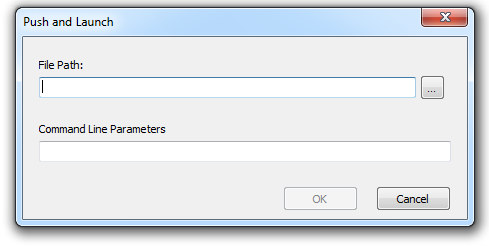
Filename and Path - specify the filename and path where the file is available on the console computer. Alternatively, you can browse to select the executable. File types supported are .exe (executables) and .msi (MSI installers). MSI files are run in install mode by default. For example, if the executable MyApplication.exe is available at C:/AppFolder, specify C:/AppFolder/MyApplication.
|
|
•
|
Arguments - specify the arguments that you want to apply with this executable. For example, if the executable is run from the command prompt with the command C:\AppFolder\MyApplication -o logFile.log, specify -o logFile.log for arguments. For .msi files, specify the arguments that you would normally specify when launching a .msi file with MSIEXEC. If you do not specify any argument for a .msi file, Deep Freeze will automatically append "/i" (install). Deep Freeze also replaces any display options with /qn, (quiet, no UI).
|
|
5.
|