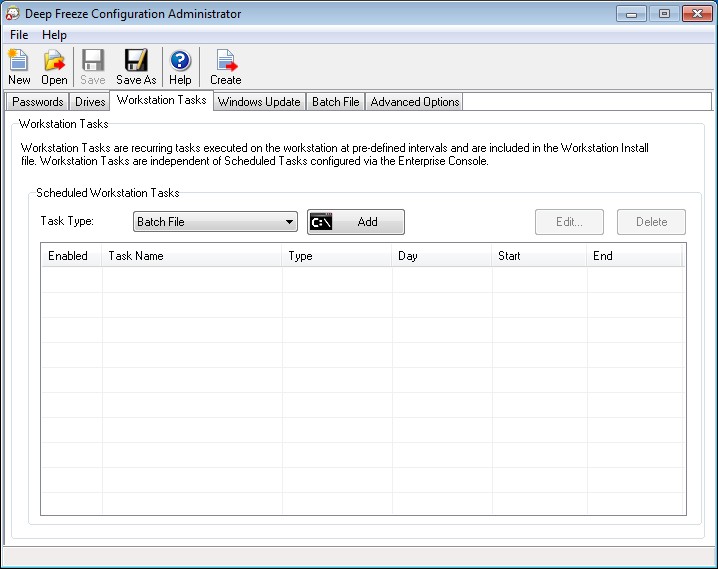
Batch File tasks are scheduled for executing batch files on the workstation. A Batch File task has a Start Time and an End Time. During this period, the batch file is executed on the workstation. You must configure additional settings in the Batch File tab for the Batch File Task to work. You can configure to shutdown the workstation after the Batch File Task is completed. Workstations will reboot Frozen after the batch file has been executed.
|
1.
|
|
•
|
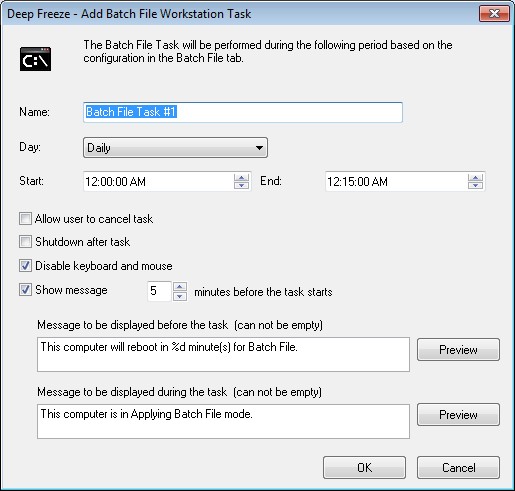
Name - Specify a name for the task.
|
|
•
|
Day - Select the day, or specify if the task will occur on Weekdays or Weekends.
|
|
•
|
Start - Select the Start Time.
|
|
•
|
End - Select the End Time. The minimum interval is 15 minutes.
|
|
•
|
Allow user to cancel the task - Select the check box if the user is allowed to cancel the task before it starts.
|
|
•
|
Shutdown after task - Select the check box to shutdown the computer after the task.
|
|
•
|
Disable Keyboard and Mouse - Select the check box to disable keyboard and mouse during the task.
|
|
•
|
Show message - Select the check box to display a message on the computer Before and During the task. Specify the time interval in minutes and enter a brief message to be displayed before the task starts.
|
|
3.
|
|
4.
|
Go to Batch File Tab to configure additional settings.
|
|
The message This computer will reboot in %d for Batch File is displayed in the Message to be displayed before the task field. This message can be edited. Add the word minutes in the message after %d to include the word minutes as part of the message.
|