|
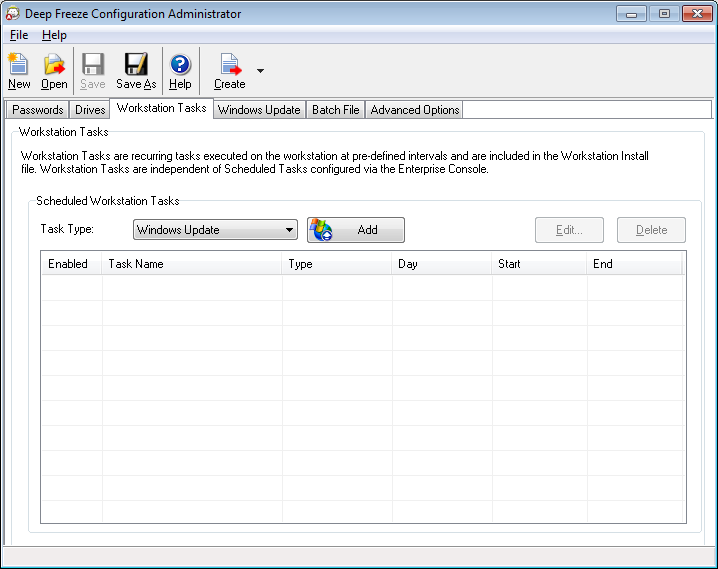
Windows Updates can also be applied manually on the workstation by selecting the workstation and via the command Run Windows Update from the context-menu in the Deep Freeze Console. For more information, refer to Managing Deep Freeze with the Console.
|
|
1.
|
|
•
|
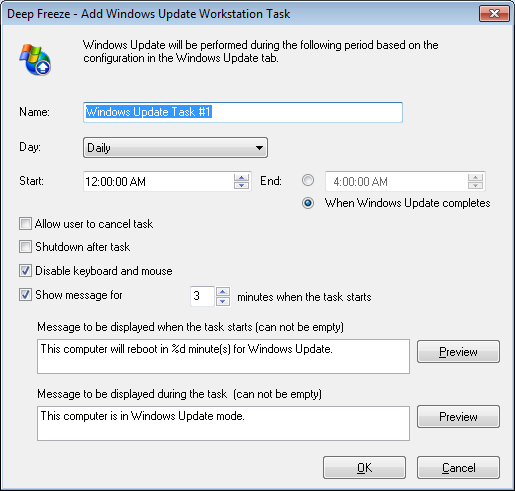
Name - Specify a name for the task.
|
|
•
|
Day - Select the day, or specify if the task will occur on Weekdays or Weekends.
|
|
•
|
Start - Select the Start Time.
|
|
•
|
End - Select the End Time. The minimum interval is 15 minutes. Alternatively, you can select When Windows Update completes. If the Windows Update Task is not completed in 6 hours, Deep Freeze will end the task gracefully.
|
|
•
|
Allow user to cancel task- Select the check box if the user is allowed to cancel the task before it starts.
|
|
•
|
Shutdown after task - Select the check box to shutdown the computer after the task.
|
|
•
|
Disable Keyboard and Mouse - Select the check box to disable keyboard and mouse during the task.
|
|
•
|
Show message - Select the check box to display a message on the computer Before and During the task. Specify the time interval in minutes and enter a brief message to be displayed before the task starts.
|
|
3.
|
Click OK. You will be taken to the Windows Update Tab to configure additional settings if it has not been configured earlier.
|
|
The message This computer will reboot in %d for Windows Update is displayed in the Message to be displayed before the task field. This message can be edited. Add the word minutes in the message after %d to include the word minutes as part of the message.
|
|
When scheduling the Windows Update task select the When Windows Update completes option or ensure that you allow a sufficient time frame to permit all required update activities. Review of Microsoft Security Bulletins from the Technet web site (http://technet.microsoft.com/en-us/security/bulletin) to consider the appropriate time frame based upon the Critical and Security updates being released.
|
|
Alternatively, to apply other available updates visit the Microsoft Update Catalog site (http://catalog.update.microsoft.com) to obtain KB downloads which can then be applied using a Deep Freeze Batch File Workstation Task. Batch File tasks can also be used to apply other third party software updates.
|
In the above screen, a Windows Update task has been created to perform Windows Updates at the computer daily at 12:00 AM and end when Windows Update completes. The task is configured to display a message to the user before Windows Update. The keyboard and mouse are disabled.